· Buunto Team
Edit one-off and disabled dates in bulk
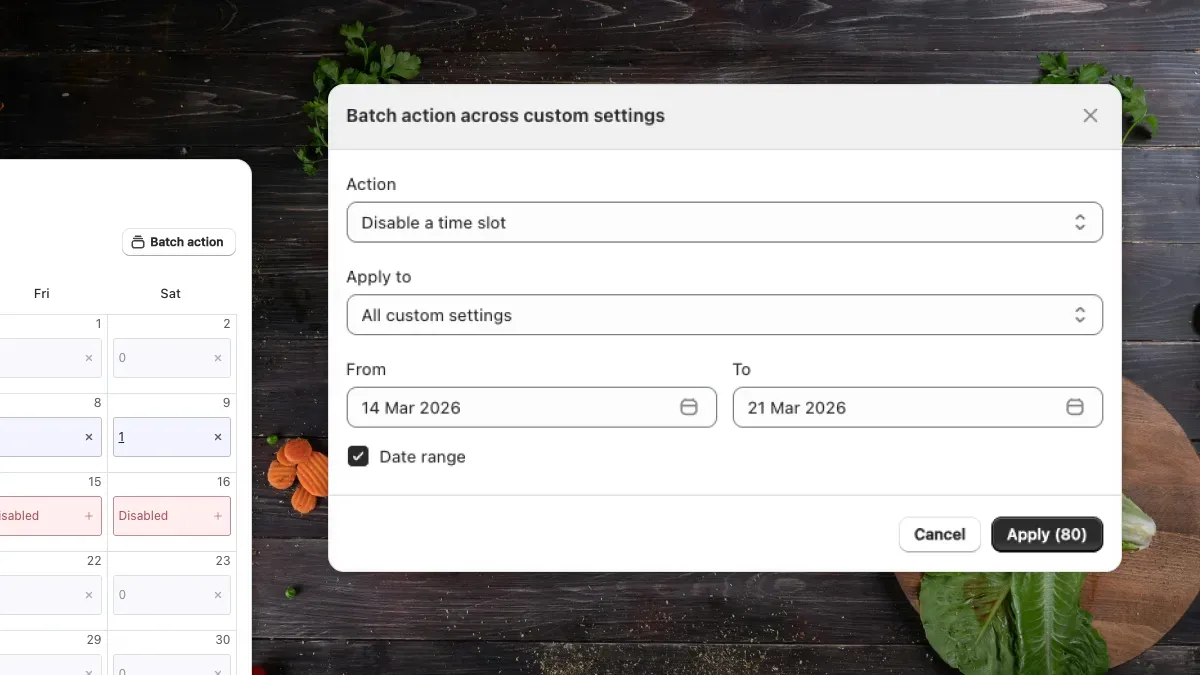
If you’ve ever had to disable the same date across several delivery methods or custom settings one at a time, you know how tedious it can get - especially around holidays or seasonal changes.
Batch actions let you do it all at once.
How it works
From the Calendar view in Buunto, click Batch actions to open the bulk editor. From there you can:
- Enable or disable dates across a date range (up to 365 days)
- Enable or disable specific time slots within that range
- Choose which delivery methods to apply the change to
- Choose which custom settings to apply to - all of them, or just specific ones
Each action applies across every combination you select, so a single batch can cover dozens of individual changes.
When it’s useful
- Closing all delivery and pickup for a holiday week
- Disabling early morning time slots across all methods for a seasonal schedule change
- Re-enabling dates after a temporary closure
No more clicking through each method and date one by one. Set it once, apply it everywhere.
For the full guide, check out our documentation.