Shopify Delivery Date Best Practices: What to Show and How to Set It Up
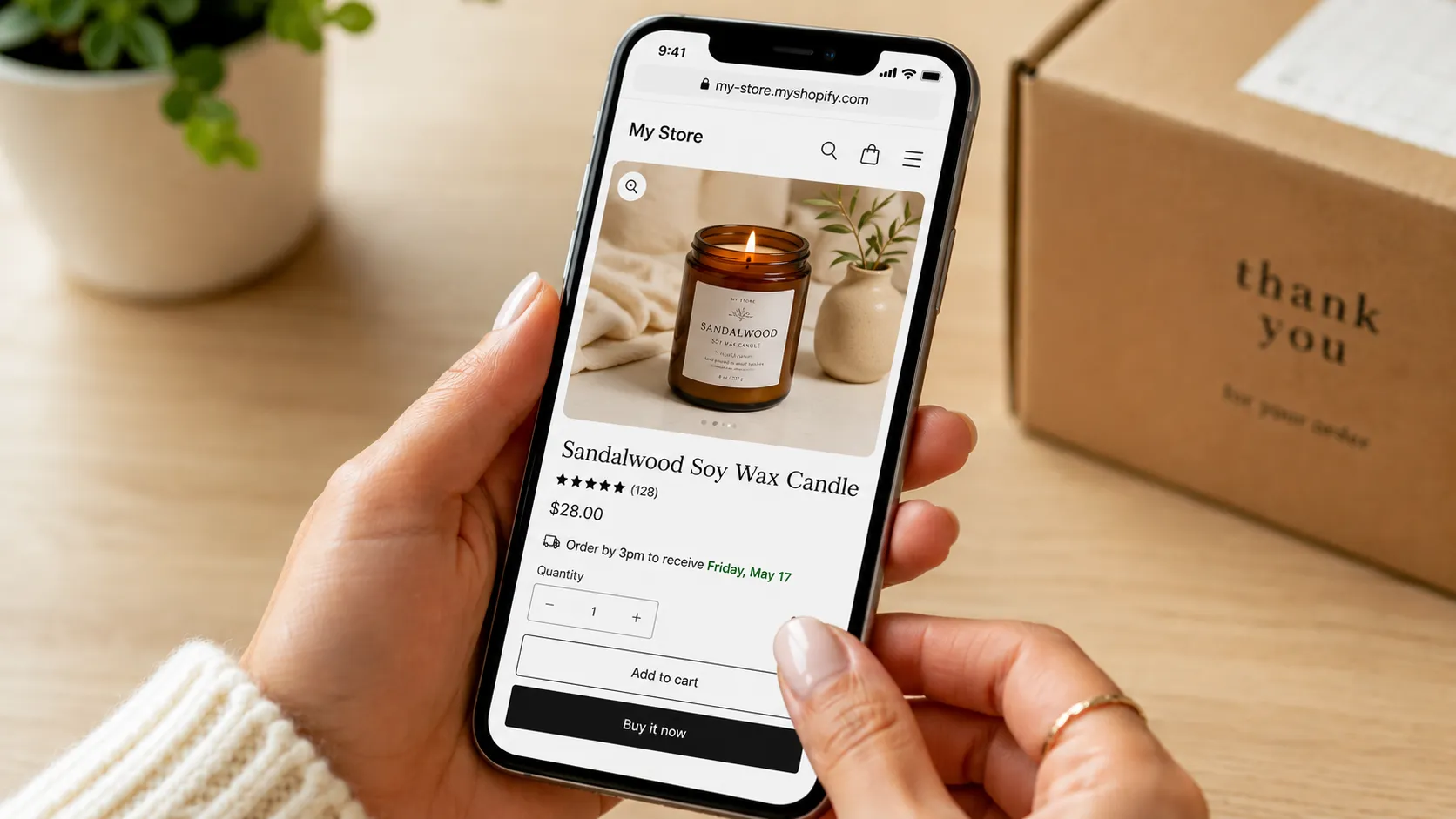
Customers don’t just want their order. They want to know when it’s coming. And the moment that information is missing, vague, or wrong, you lose their trust. Sometimes you lose the sale entirely.
Delivery date expectations have shifted. Shoppers are used to Amazon-level precision. That doesn’t mean every Shopify store needs to promise next-day shipping, but every store does need to communicate clearly. When customers know what to expect, they buy with confidence and contact support far less often.
This post covers the practical side of delivery dates on Shopify: what to display, how to set it up accurately, when to let customers pick their own delivery window, and where it all connects to conversions.
Why Delivery Date Clarity Drives Conversions
Shipping uncertainty is one of the most underrated reasons people abandon carts. A shopper eyeing a birthday gift or a time-sensitive order needs one question answered before they’ll buy:
Will this arrive in time?
If your product page doesn’t answer that, they’ll go find a store that does.
Merchants who display estimated delivery dates consistently report fewer “where’s my order?” emails and higher checkout completion rates, especially on mobile, where buyers make quick decisions and don’t scroll for hidden shipping info.
The business case is simple: clear delivery information removes friction at the most critical point in the purchase journey.
Best Practice 1: Show Estimated Delivery on the Product Page
Don’t make customers hunt for shipping information. The product page is where purchase decisions happen, and that’s where your delivery estimate belongs.
If you’re not sure how to get it set up, Essential Apps have a step-by-step guide on how to add estimated delivery time on Shopify.
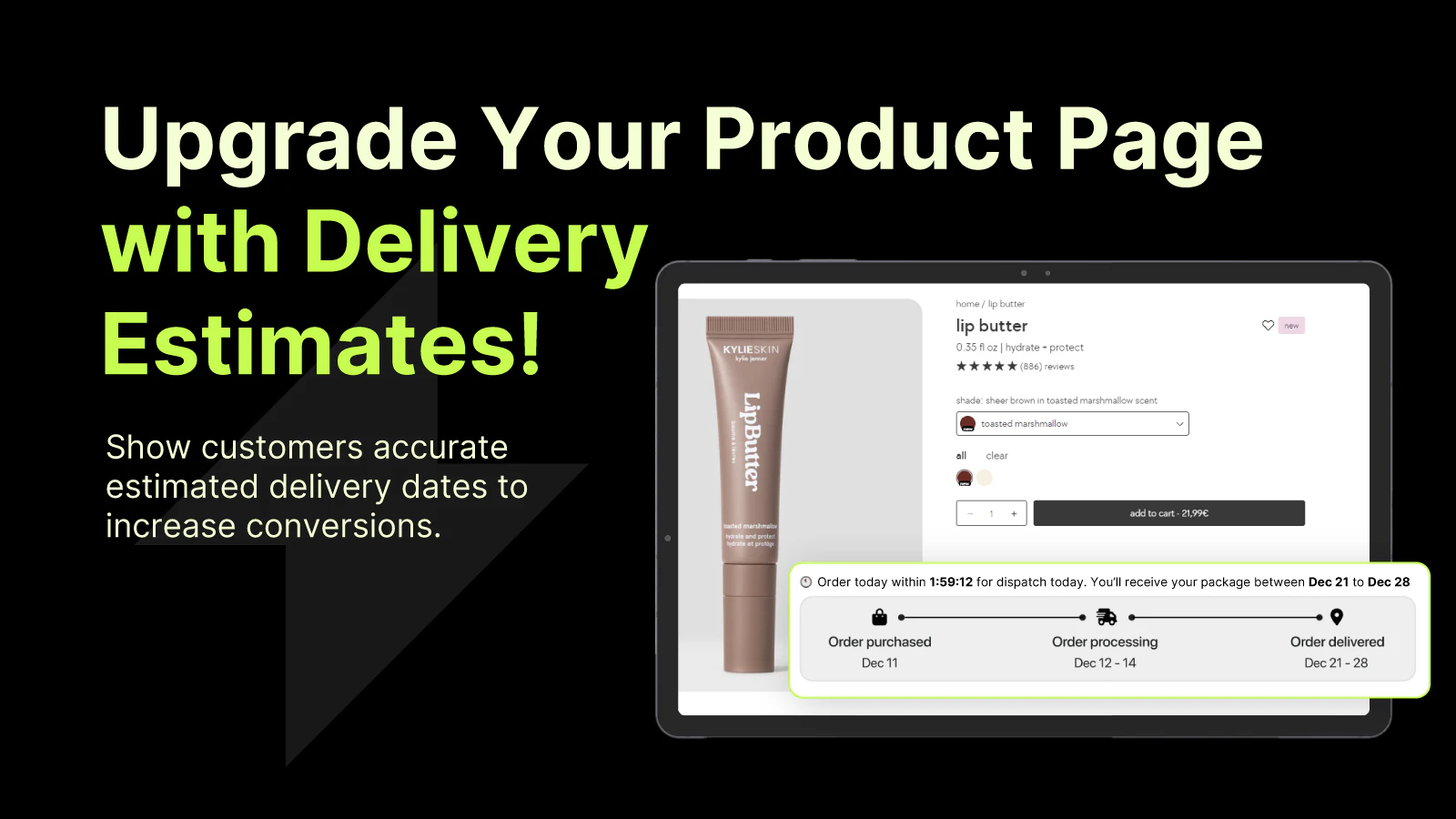
A good delivery widget shows something like:
Order today before 3pm – estimated delivery March 14–18.
It’s specific, time-aware, and gives the customer a real window to evaluate against their needs.
What Your Delivery Widget Should Include
There are four things that make an estimate actually useful:
- Processing time: how long before you ship
- Transit time: how long once it’s shipped
- A cutoff time: order by X to ship today
- Blocked dates for holidays or non-processing days
Getting all four right requires more than hardcoding “ships in 3–5 days”. You need a tool that calculates the window dynamically based on your actual fulfilment schedule.
How Essential Estimated Delivery Date Handles This
Essential Estimated Delivery Date does all of this out of the box.
You set your processing days, cutoff time, transit range, and holidays, and the widget calculates the estimate in real time for every product page. You can also scope it by market, collection, or individual product, so a made-to-order item shows a different estimate than something you ship same-day.
One thing worth knowing about the calculation logic: the app uses the maximum processing time as the starting point for the delivery window, not the minimum. If you process orders in 2–5 business days, the estimate starts from day 5 before adding transit time. It’s a deliberate choice that avoids over-promising, so customers are rarely disappointed.
👉 Install Essential Estimated Delivery Date
Best Practice 2: Be Realistic, Not Optimistic
The worst thing you can do is show a delivery window you can’t reliably hit.
One missed promise does more damage than a slightly longer honest estimate.
Common Mistakes That Ruin Customer Trust
Showing minimum processing time as the default is a classic one. If you say “ships in 1 day” and it sometimes takes 3, you’ll get complaints. Build your estimate around your actual fulfilment pace, including slower days.
Ignoring holidays and weekends is another. If your warehouse doesn’t process on weekends or closes for bank holidays, that needs to be reflected. Customers don’t know your schedule, so your widget should account for it.
Using the same estimate for every product is also worth revisiting. A standard product and a custom-engraved one don’t ship on the same timeline. Set product-level or collection-level estimates wherever your fulfilment varies.
Accuracy builds trust.
A range of “arrives March 14–18” that turns out to be March 16 is a pleasant surprise. A promise of “arrives March 12” that slips to March 18 is a support ticket and a negative review.
Best Practice 3: Let Customers Choose Their Delivery Date When It Makes Sense
For some store types, showing an estimated delivery date isn’t enough. Customers need to select one.
This applies particularly to:
- Food and beverage stores
- Florists
- Local delivery businesses
- Gifting stores
- Merchants managing capacity by day or time slot
If your store operates in one of these categories, you’re probably already handling delivery logistics manually via spreadsheets, phone calls, or notes in order comments.
There’s a better approach.
When a Date Picker Makes More Sense Than an Estimate
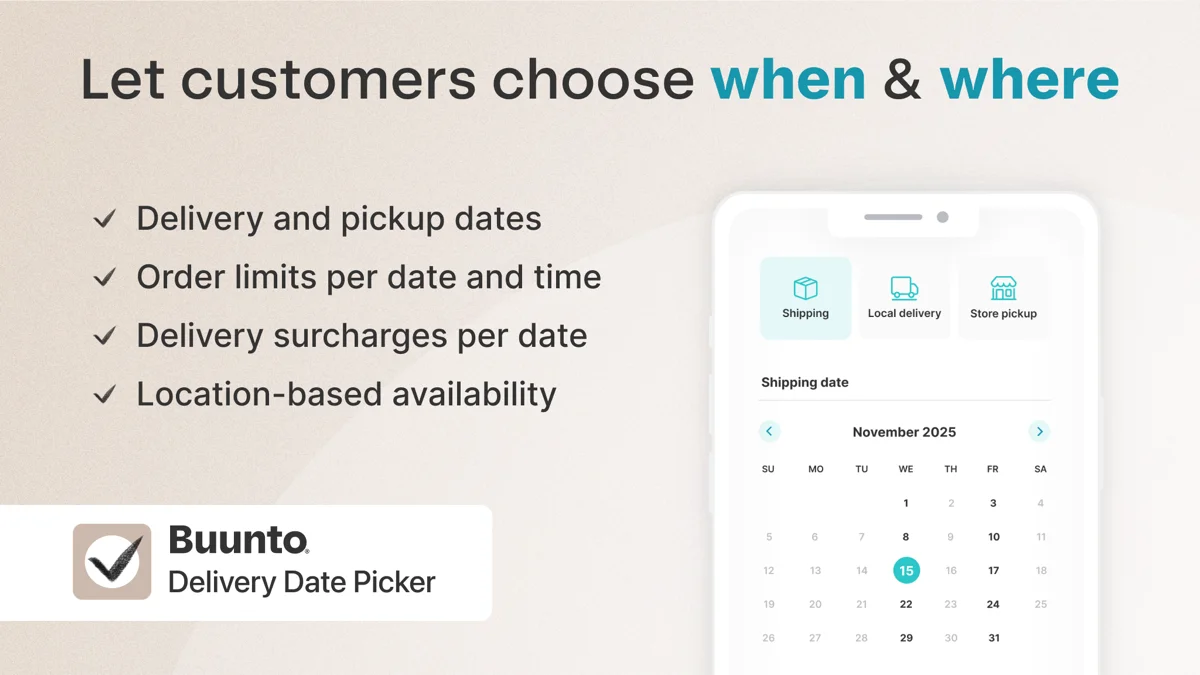
Buunto - Date & Time Picker is built specifically for this. It lets customers pick their preferred delivery date and time slot directly on the product page or cart, while you keep full control on the back end.
Merchants running local delivery or fresh product stores tend to get the most out of it.
You can:
- Set order limits per slot so you’re never over-booked
- Apply different schedules per product or collection
- Charge delivery surcharges for express windows
- Add unlimited pickup locations with Google Maps directions built in
Checkout validation confirms the selected date is still available at the moment of purchase, not just when it was first chosen.
If you’re managing delivery logistics for a time-sensitive or capacity-constrained store, Buunto removes a significant operational headache while giving customers a noticeably better experience.
👉 Try Buunto on the Shopify App Store
Best Practice 4: Use Cutoff Times to Create Real Urgency
A countdown to the order cutoff time is one of the most effective conversion tools on a product page, but only when it’s accurate.
Order within 2h 14m to get it by Friday
That works because it’s specific and time-sensitive. It creates real urgency without manufactured pressure. The deadline is simply true.
How to Add a Cutoff Countdown to Your Delivery Widget
Essential Estimated Delivery Date includes a {counter} variable you can drop directly into your widget message.
Set your cutoff time, and it automatically counts down for each visitor. When the cutoff passes, the message updates to reflect the next available window.
This is especially effective for stores with same-day or next-day dispatch. It turns a fulfilment capability into a conversion lever.
Best Practice 5: Match Delivery Messaging to Your Store’s Reality
Not every store ships from a single warehouse on a fixed schedule.
If your operation is more complex, your delivery date setup should reflect that.
Shipping to Multiple Markets
If you ship internationally, transit times vary significantly by region.
Essential Estimated Delivery Date supports per-market widgets, so your US customers see a US estimate and your EU customers see something different — not the same conservative global range that undersells your actual speed.
Out-of-Stock and Preorder Products
If a product isn’t available immediately, showing a delivery estimate doesn’t make sense.
Showing a restock date or preorder window does.
Essential Preorder Back in Stock handles this: customers can sign up for restock alerts or place a preorder with a clear fulfilment expectation, rather than hitting a dead end on an out-of-stock page.
Peak Seasons and Promotional Periods
During BFCM and Christmas, fulfilment slows down.
Adjust your processing time and blocked dates before peak hits, not during it.
Running a Shopify announcement bar with holiday shipping cutoff dates in the weeks before is also worth doing. It manages expectations proactively and cuts the surge in “will it arrive in time?” messages before it starts.
What Good Delivery Date Setup Actually Looks Like
Here’s a simple framework for thinking about this across different store types.
Standard Products Shipped From Stock
- Use an estimated delivery widget on the product page
- Set accurate processing time, cutoff, transit range, and holidays
- Let urgency messaging do the conversion work
Variable or Made-to-Order Products
- Set product-level or collection-level estimates
- Don’t show the same window as your standard products
Local Delivery, Time-Sensitive, or Fresh Products
- Use a date and time picker so customers select their slot
- Pair it with capacity controls so you don’t over-commit
Out-of-Stock Products
- Replace delivery info with a preorder or restock notification
- Keep demand capture open even when you can’t ship today
The Bottom Line
Delivery dates aren’t just a logistics detail.
They’re a conversion tool, a trust signal, and a support deflector all in one.
Getting them right doesn’t require much: an accurate estimate on the product page, honest processing times, and a setup that reflects how your store actually operates.
Start there, and you’ll spend less time answering shipping questions and more time watching customers check out with confidence.