Your customers' delivery date now follows them to checkout
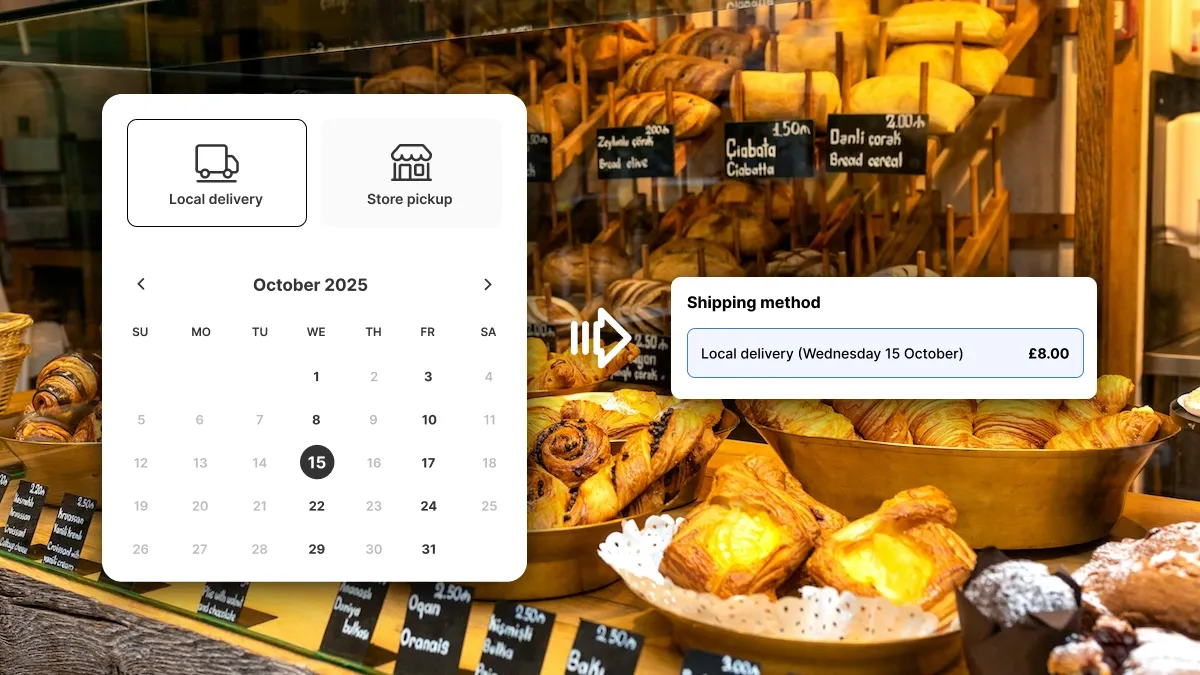
Your customers pick a delivery date and time slot on your product or cart page, then they reach checkout and have to choose the right shipping option all over again. It’s a confusing extra step that shouldn’t be there.
Checkout delivery options sync fixes this. It connects Buunto directly to your Shopify checkout so the right delivery option is already selected, with a clear label showing exactly what the customer chose.
What your customers see
Instead of a generic shipping rate name, the checkout shipping method is automatically renamed to show the full details of their selection:
- Local delivery (Friday 13 February, 11am - 12pm)
- Store pickup, London Store (Tuesday 17 February, 9am - 10am)
- Standard left untouched for regular shipping
Labels are automatically translated based on the customer’s language, and date formats adapt to their locale. No more confusion, no extra steps.
Works on every Shopify plan
This was our most-requested feature. Normally, the ability to customise the checkout on Shopify is reserved for higher-tier plans. Buunto makes this available to all merchants, including those on Basic, at no extra cost. If you’ve been looking at upgrading your plan or using a Plus-only app just to get this kind of checkout control, you don’t have to.
No code setup
Setup takes just a few minutes in Buunto’s settings, and there’s no code involved. For the full step-by-step guide, check out our documentation.